
How do I create coupons for a plan in Subscription Payments?
From the Recurring Payments section, click the Coupon Codes or BIN Discounts icon under the Actions menu to activate them automatically.
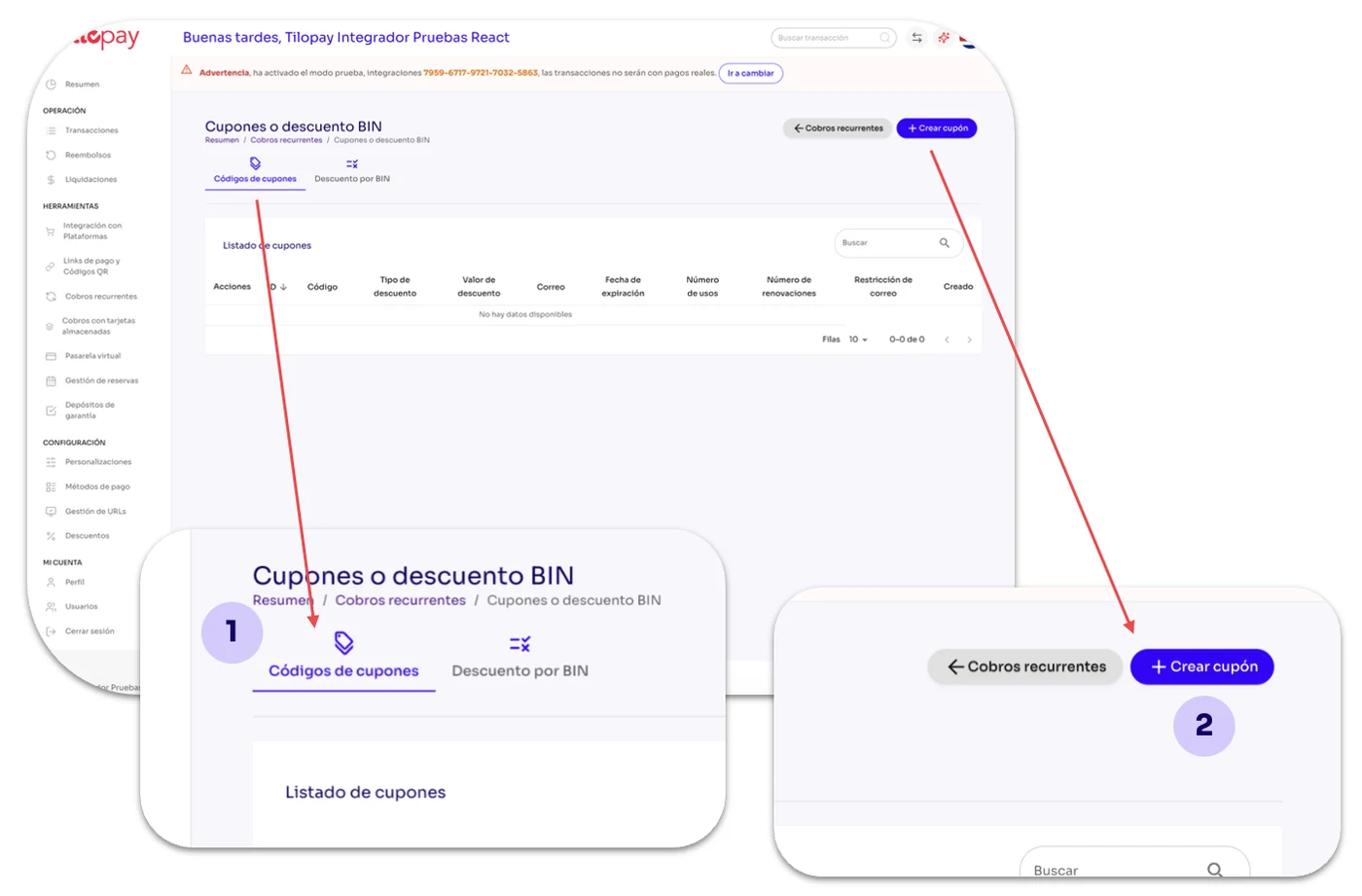
From the Recurring Payments section in the Tilopay Admin Dashboard, click the Coupon Codes or BIN Discounts icon under the Actions menu to activate them automatically.
Coupon Codes: When you click Coupon Codes, the Create Coupon button will become available so you can create coupons for the recurring plan you selected.
2. When you click Create Coupon, a form will appear requesting information.
[table 106]
[image 106]
[table 107]
[image 107]
From the Recurring Payments section, you can edit a Plan by clicking the Edit icon under the Actions menu.
When you click the Edit button, the form for the Recurring Payment plan you need to update will appear.
Remember to click the Save button so you don't lose your changes.
[image 108]