How do you set up the Tilopay Payment Method for credit or debit card payments in WooCommerce?
WooComerce is the platform that lets your store accept credit and debit cards in Central America and the Caribbean.
WooComerce is the platform that lets your store accept credit and debit cards in Central America and the Caribbean.
To set up the Tilopay plugin for WooCommerce, go to WooCommerce -> Settings -> Payments. Find Tilopay, select Install Now, and then click Activate.
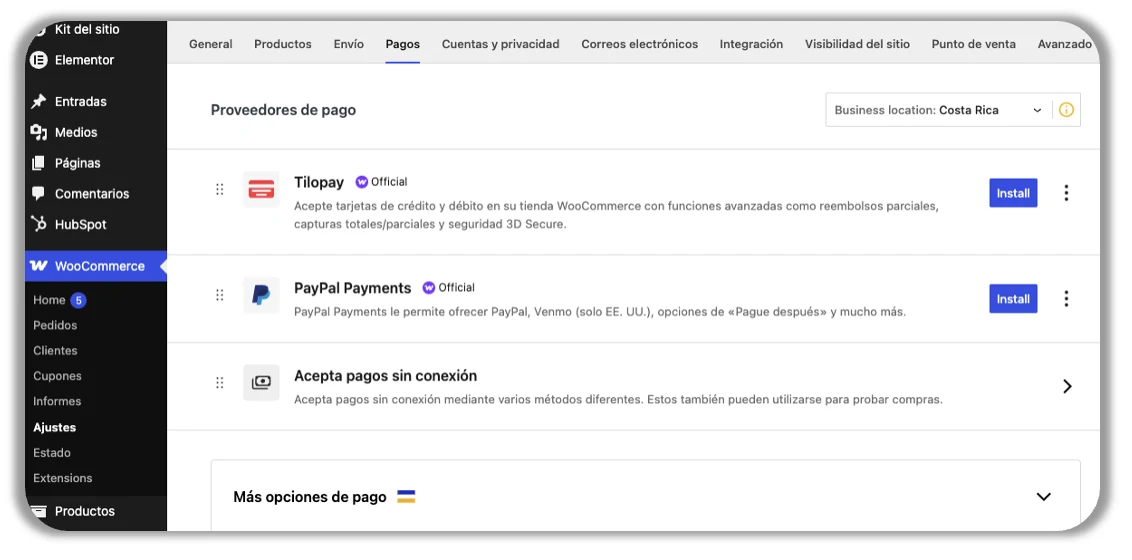
Set up card payments
To set up card payments in WooCommerce, click Finish Setup and complete the form with the API information from the Tilopay Admin Panel.
You can find the Tilopay credentials for your WooCommerce integration in the Tilopay Admin Panel. Click the Platform Integrations section and find WooCommerce in the drop-down list.
[image 73]
[table 74]
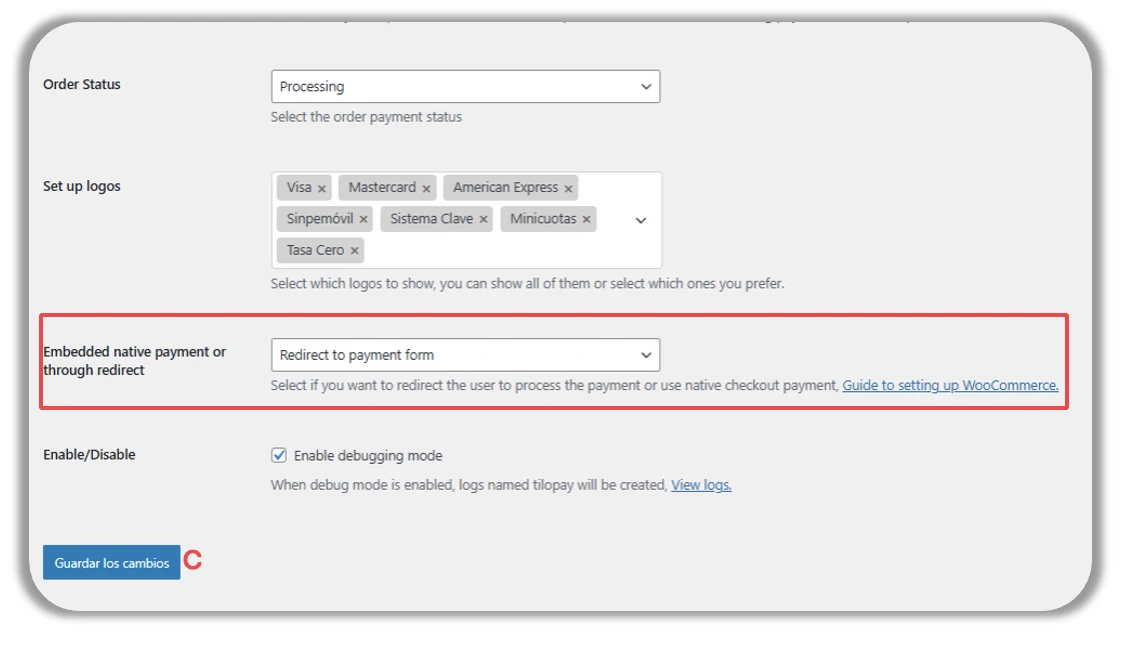
Near the end of the form, you can select where you want your customer to complete their payment:
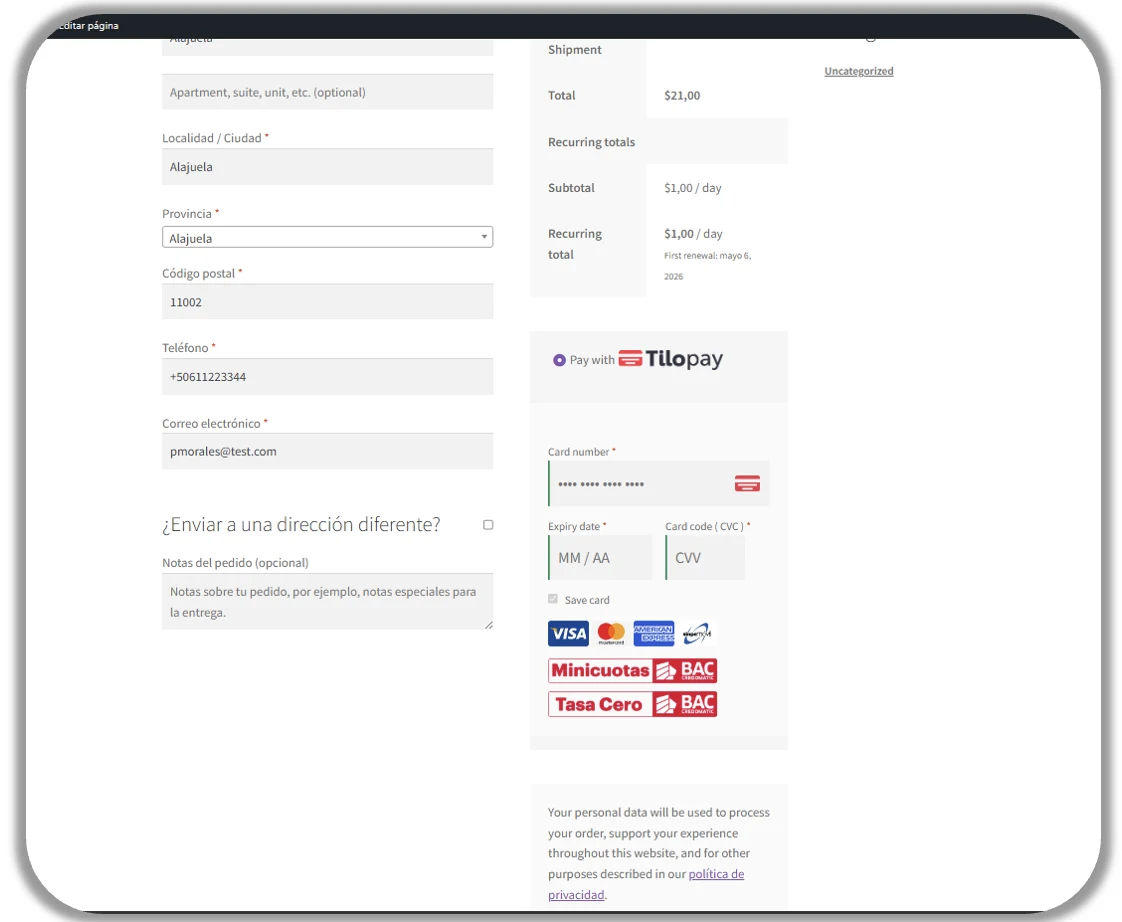
Directly from your WooCommerce store by selecting Native Payment.
Directly through Tilopay by selecting Redirected Payment.
Enable debugging mode: When you select this checkbox, Tilopay and WooCommerce can access transaction logs. This access is essential for answering your questions and helping you troubleshoot any transaction issues.
This is how your customer will see the checkout when you select Native Payment for payments using alternative or local payment methods:
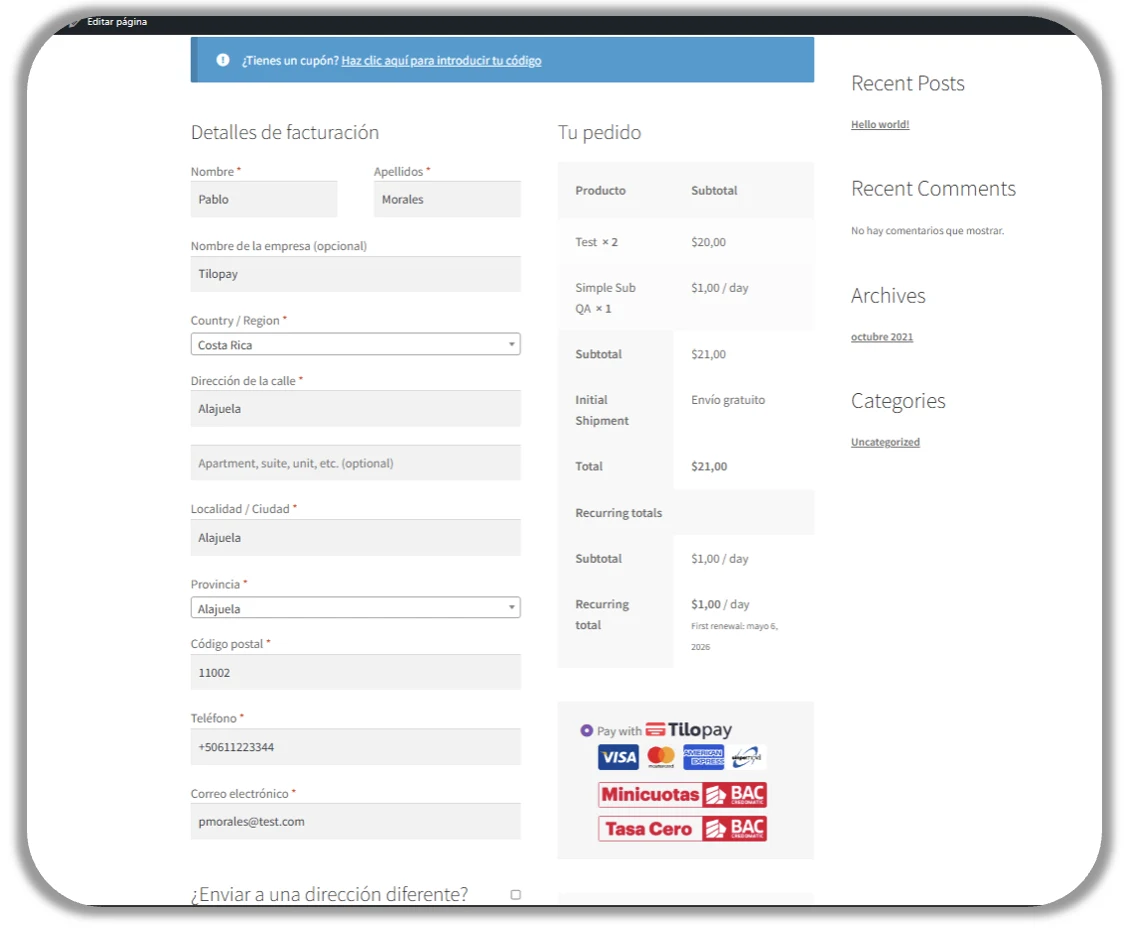
This is how your customer will see the checkout when you select Redirected Payment for payments using alternative or local payment methods: