
How Do I Set Up the Tilopay Payment Method for Credit or Debit Card Payments in Shopify?
To integrate your business through the API, the Admin Panel provides your company's unique key and credentials.
To integrate your business through the API, the Tilopay Admin Panel provides your company's unique key and credentials.
You can find instructions on how to use the Tilopay API in Tilopay API.
You can find the Tilopay credentials for your Shopify integration in the Tilopay Admin Panel by clicking the Platform Integration section and searching for Shopify in the drop-down list.
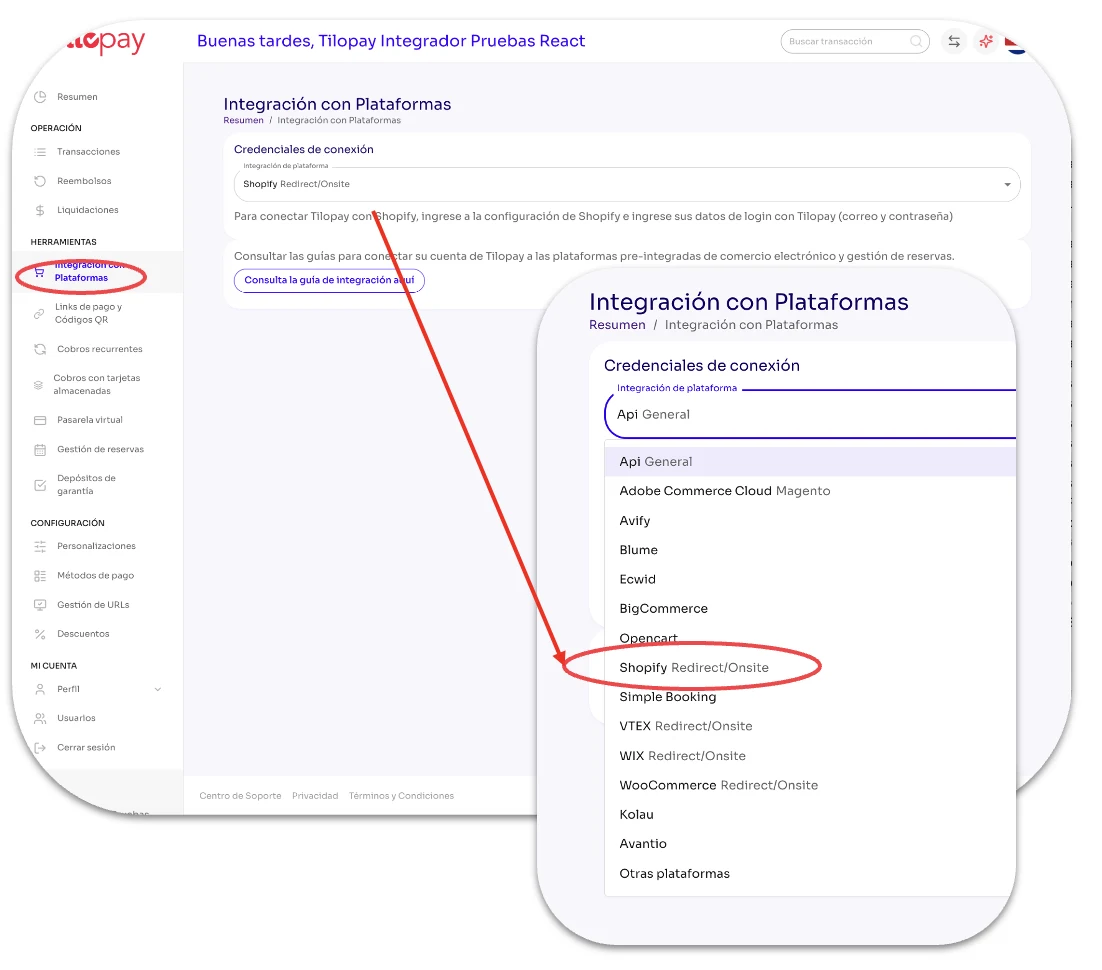
Follow these instructions to allow your Shopify store to accept one-time card payments (Visa, MasterCard, and AMEX):
Log in to your Shopify store's admin panel.
Go to Settings and click Payments.
Under Payment providers, search for Tilopay and select from the available options to activate the Payment methods available in your country.
Click each selected Provider to activate the Payment methods you want to offer your customers and enable or disable Test mode for your Shopify store.
* Remember that you must enable and disable Test Mode on both platforms for it to work properly.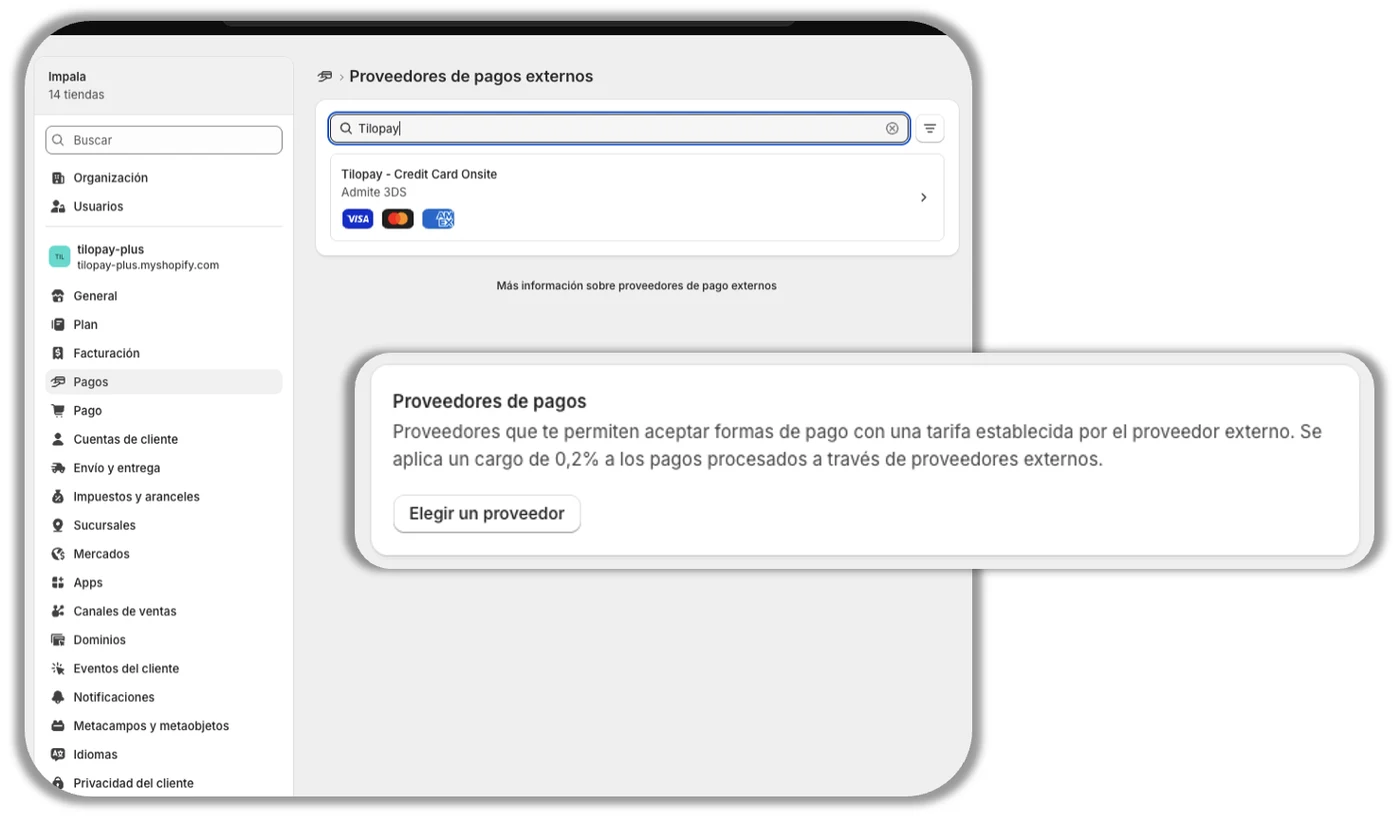
Once you activate the Payment Method, follow the instructions. When prompted to enter your credentials, use the username and password for the primary account you use to log in to the Tilopay Admin Panel.
Shopify will let you know when you're connected to Tilopay, and you'll be prompted to activate the payment methods you'll use for your business by checking the corresponding box for each one (cards and alternative payment methods).
Then click Activate Tilopay.
[image 34]